


|
|
|
|
|
|
|
|
|
version 2004 (Modified)
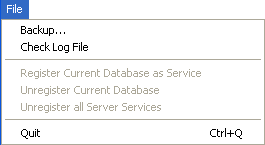
Backup
This command lets you launch a back-up of the database at any time. When you select this command, the following dialog box appears:
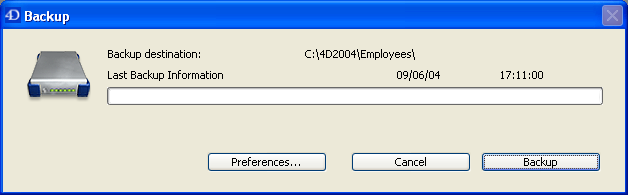
• The Backup button immediately launches a back-up that takes the parameters set in the Preferences dialog box of the application into account (files to be backed up, location of archives, number of sets kept, etc.).
• The Preferences button opens the "Backup" theme of the Preferences, which lets you view and, if necessary, modify the current back-up settings.
• The Cancel button interrupts the back-up process.
For more information about back-up configuration, refer to the Design Reference manual of the 4th Dimension documentation.
Check Log File
The log file stores all the operations carried out on the data of the database (addition, modification, deletion) — whether they were carried out by a user (from 4D Client), a stored procedure, a plug-in, a Web browser or yet again by 4D Open. In the event of an incident on the database, restoring the last back-up and integrating the log file ensure that you will recover the database in the exact state it was in prior to the incident.
The Check Log File command displays a window that lets you view the contents of the current log file:
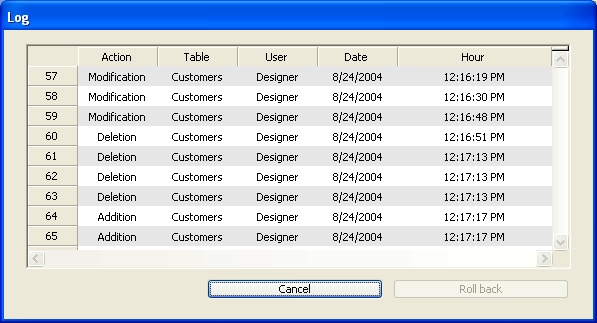
This window is useful for analyzing the use of a database or detecting the operation(s) at the origin of errors or malfunctioning. More particularly, it lets you check the operations carried out by each client machine.
This window also lets you go back through the operations carried out in the database (Roll back button).
For more information about these functions, refer to the User Reference manual of the 4th Dimension documentation.
Register Current Database as Service
Unregister Current Database
Unregister all Server Services
4D Server can be launched as a Service under Windows and under Mac OS X.
A 4D Server application registered as a service is automatically launched on start-up of the machine with the current database, even before a user session is opened. It is not closed when the user exits their session.
This operation lets you guarantee the availability of a 4D Server database even in the event of an incident that requires restarting the machine. Maintenance can be carried out remotely.
Note: For more information about the mechanisms for managing Services, refer to the documentation of your operating system.
To register a 4D Server database as a Service, select Register Current Database as Service. The next time the machine is started, 4D Server will be launched automatically and the current database opened.
You can register any number of databases. Each database can be registered only once.
Warning: Be sure to use a valid account when you open the session. In addition, this user account must have access to a printer, otherwise an error message will be displayed. Access to the services settings is generally via the Administrative Tools/Services of the Control Panel.
To unregister your database, select Unregister Current Database from the 4D Server File menu. This command is dimmed if the database is not registered as a service.
To unregister all 4D Server databases at once, select Unregister all Server Services from the 4D Server File menu. This command is dimmed if no 4D Server service is enabled.
You cannot change the service registration status of 4D Server from within 4D Server, if the application has been launched as a service on start-up. In this case, the three menu items are disabled. To stop the service, use the Services control panel.
Quit
This command lets you close the 4D Server application. For more information, refer to the Exiting 4D Server section.
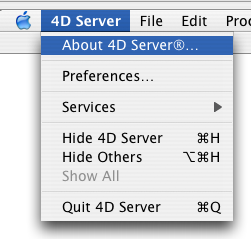
Note: Under Mac OS X, the Quit command is located in the 4D Server menu (application menu).
See Also
Data Menu, Edit Menu, Help Menu, Process Menu, Web Server Menu.
|
|
|
|
|
|
|
|
|