


|
|
|
|
|
|
|
|
|
version 2004 (Modified)
You can create a path document that enables you to access a 4D Server database directly from the client machine.
When you drag and drop a path document onto the 4D Client application (or double-click the file), you access the 4D Server database directly, without having to specify it in the connection dialog box.
In addition, the connection file can contain the user password (encrypted). In this case, access to the 4D Server database is immediate.
To create a path file to a database:
1. In the User Identification dialog box of 4D Client, select or enter (depending on the current configuration) the name of the user whose access you want to save, then the password.
These parameters must be valid in order to be able to access the dialog box for saving the connection file.
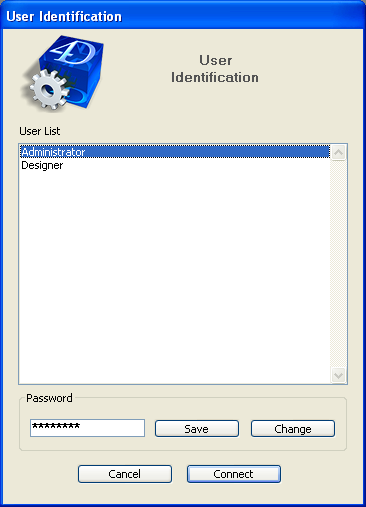
Note: This dialog box appears just after the 4D Server database is selected, when the password protection system is activated.
2. Click on the Save button.
The following dialog box appears:
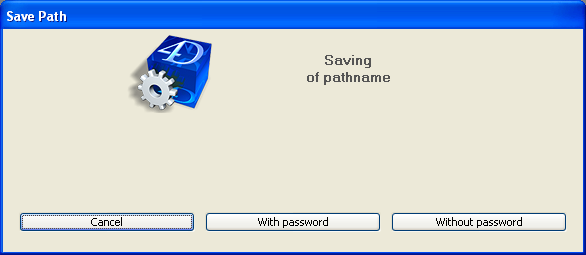
You can save the path with or without the password.
• With password: In this case, the database access path and password (encrypted) of the user are stored in the document. On startup of 4D Client, no dialog box appears and the connection is immediate.
• Without password: In this case, the database access path is stored but the user must enter their password in order to open it.
Note: The With password button does not appear if the "The user can change their password" option is not checked on the Application/Access page of the 4D Server Preferences.
3. Click on either the With password or Without password button.
A standard save file dialog box appears, which lets you specify the name and location of the file on your disk. The extension for path documents is ".pth".
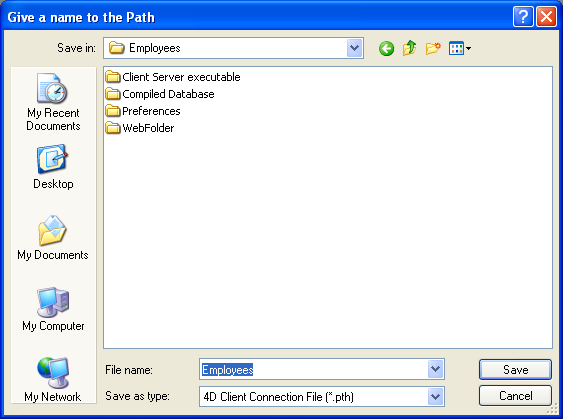
4. Choose the name and location of the file and validate the save dialog box.
The 4D Client connection file is stored on disk.

|
|
|
|
|
|
|
|
|