


|
|
|
|
|
|
|
|
|
version 2004 (Modified)
To shut down the server:
1. Choose the Quit command from the File menu of 4D Server (Windows) or the 4D Server menu (Mac OS).
The following dialog box is displayed on the server machine:
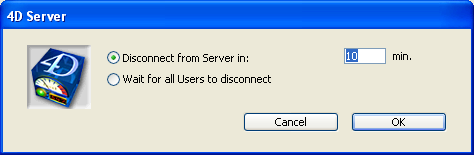
2. Enter the number of minutes in which you want the server to shut down, or choose the "Wait for all Users to disconnect" option.
As soon as you do this, no new client can connect to the server.
• If you choose the "Disconnect from Server in XX min." option, the following window appears:
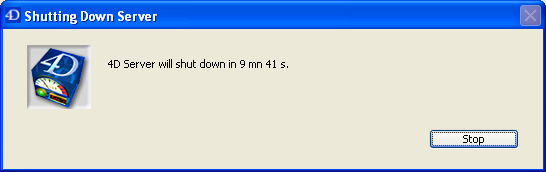
Simultaneously, the server alerts the client machines of the time remaining before disconnection:
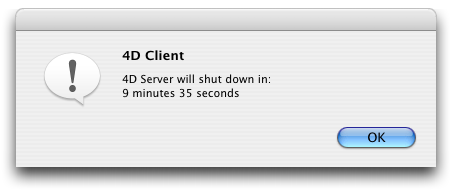
Shutting Down window on the 4D Client machines
This dialog box is repeated or updated on each client machine every 20 seconds or so, in order to prompt them to quit. When the time limit is reached, the server quits even if there are client machines still connected.
• If you choose the "Wait for all Users to disconnect" option, the following window appears:
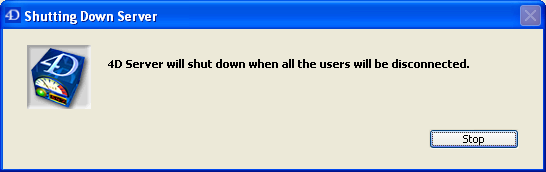
No dialog box appears on the client machines. The server will quit as soon as all the clients are disconnected.
Notes:
• In both cases, if no client is connected to the server when the shutting down window is validated, 4D Server quits immediately.
• To force 4D Server to quit with no delay, pass 0 min as the time limit.
• If you click Cancel in the "Shutting Down Server" window, the process of shutting down the server is cancelled.
|
|
|
|
|
|
|
|
|