


|
|
|
|
|
|
|
|
|
version 2004 (Modified)
If you run this tutorial on Windows, you could use this server database "as is" on Macintosh. If you run this tutorial on Macintosh, you could use this server database "as is" on Windows.
Connecting to the Server Database with a Second User
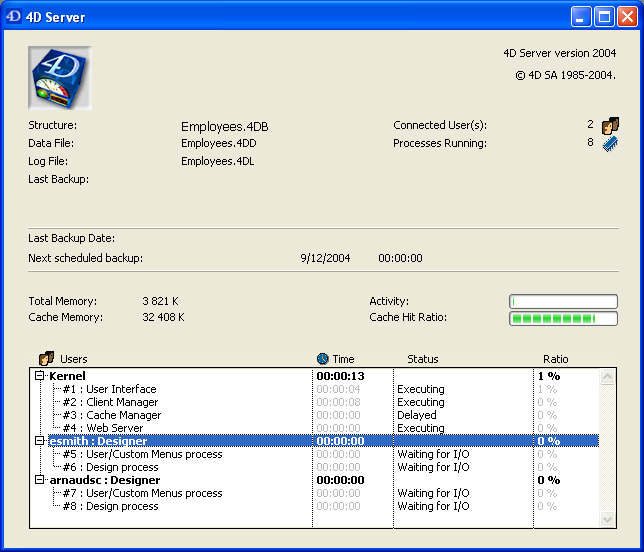
For this tutorial, we will connect to the server database with a Windows 4D Client and a 4D Client Mac OS. As soon as you are connected, you can see the second user entry in the 4D Server administration window:
On each client machine, everything done on the other platform is instaneously and transparently reusable. Here is the Design environment on a Mac OS client:
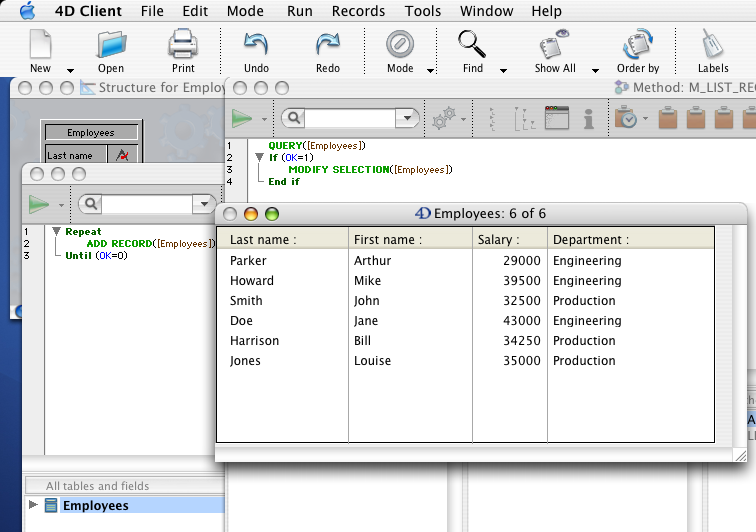
Your six records and your two methods are here!
Working Concurrently with Records
1. On the first client machine, change to Custom Menus mode, choose Queries... from the Tutorial menu, and look for the records where "Department is equal to Engineering".
2. Do the same thing on the second client machine.
On both machines, you obtain a list composed of three records.
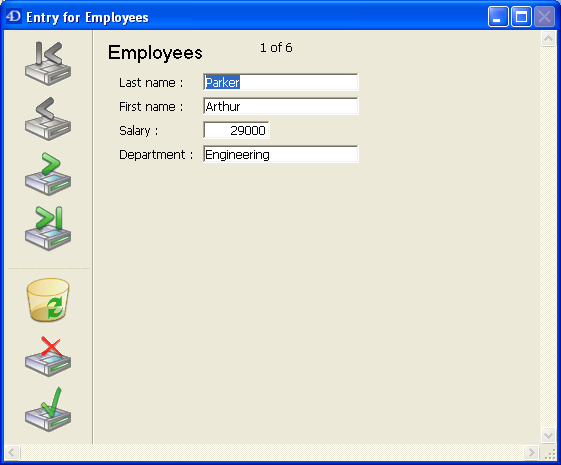
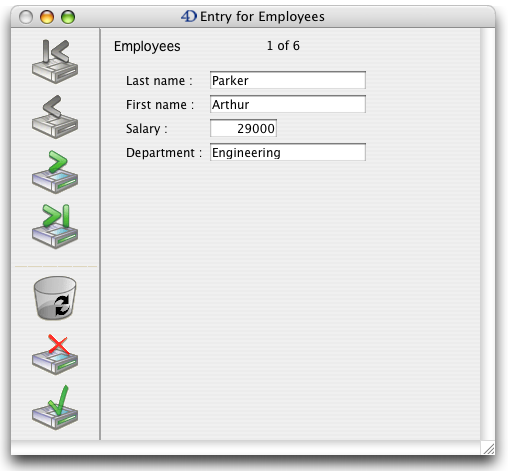
3. On the first machine, double-click on the record "Parker, Arthur".
Your screen should look like this:
4. Do the same thing on the second machine.
4D Server has a built-in record locking mechanism and warns you that the record is already in use:
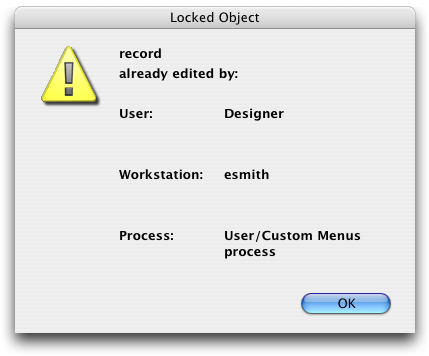
Nevertheless, you have access to the record in read-only (you can display it, but cannot modify it).
5. On the first machine, change the first name to "Michael" and validate your changes.
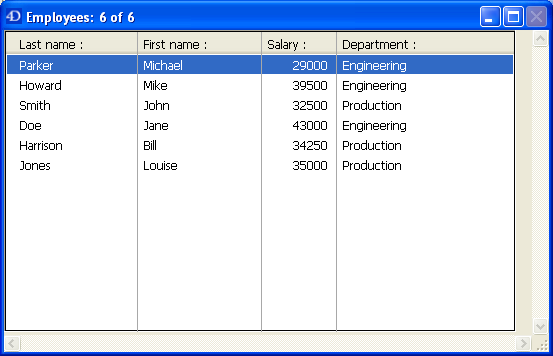
The list has been updated with the new first name.
6. On the second machine, cancel the display of the record in the input form.
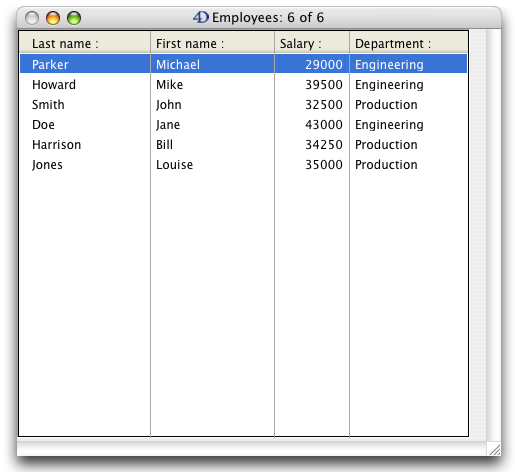
The list has been updated with the new first name too!
Working Concurrently with Design Objects
4D Server is both a data and an application server. Let's see what this means.
1. On the second machine, press the Esc. key, then choose the Design command in the Mode menu.
2. Do the same thing on the first machine.
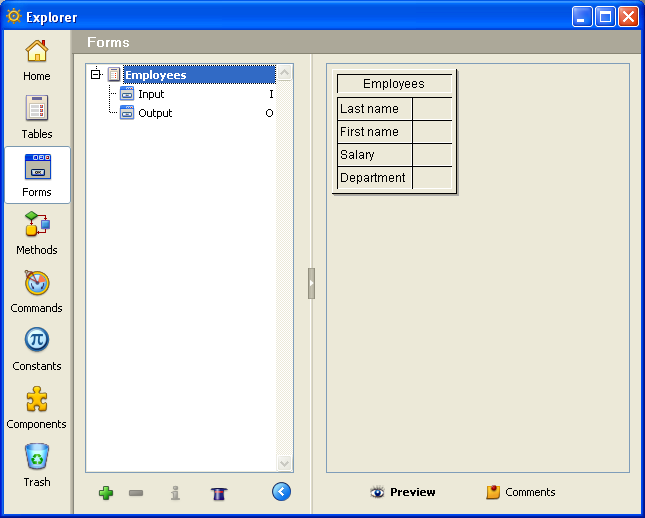
3. On the first machine, choose Explorer > Forms from the Design menu.
The Explorer window appears.
4. Expand the Employees table:
5. Double-click the Input form.
A Form Editor window is opened for the Input form:
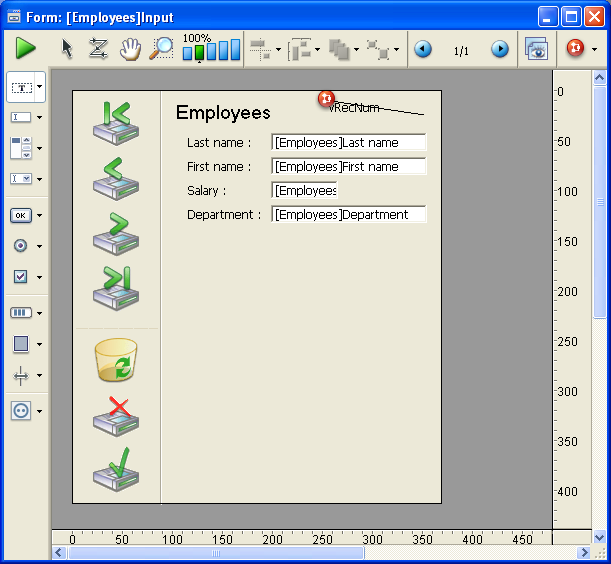
6. Do the same thing on the second machine.
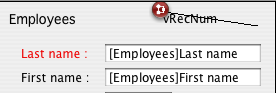
Since the form is already in Edit mode on the other machine, the 4D Server built-in object locking mechanism informs you:
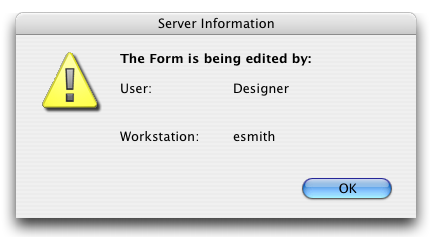
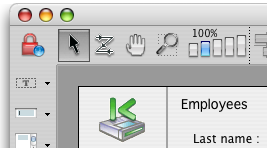
Nevertheless, you can open the form on the second machine in display mode. You can select objects and copy them to other forms, but you cannot modify the form itself.
Note the padlock icon in the upper left corner of the form. This icon reminds you that you cannot change the form.
7. On the first machine, select the legend "Last name" on the left of the [Employees]Last Name field.
8. Using the Object>Color hierarchical menu, set the color of this object to red.
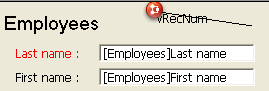
9. Select Save Form: [Employees]Input from the File menu.
10. On the second machine, close and reopen the form in order to reload it.
The change made on the other machine is now available on this one.
4D Server allows you to develop concurrently a database with other users!
Shutting Down the Server
In addition to informing 4D Client users during simultaneous access to the same records or objects, 4D Server includes a built-in shutdown warning message over the network.
1. Keeping the two clients connected the server database, on the server machine, choose Quit from the File menu (Windows) or the 4D Server menu (Mac OS).
The Shutting Down dialog box appears:
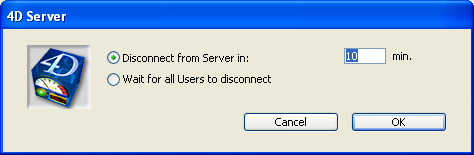
2. Click OK.
Almost instantaneously, the two client machines are informed that the server is shutting down. For example, if a client were adding a record, the user would have enough time to finish and validate the data entry.
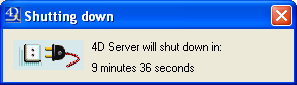
This warning dialog box is repeated regularly on each client machine.
Note: Alternatively, you can shut down the server using the option "Wait for all users to disconnect."
3. While the server is shutting down, quit 4D Client on the two machines.
Where To Go From Here?
First, after these nine intense minutes and while the server is shutting down, you might want to have drink.
Now, the interesting point is that you did not just develop two applications—in fact, you developed three applications!
To see why, go to the section 4D Server is a Web Server. This will take about one minute.
|
|
|
|
|
|
|
|
|