


|
|
|
|
|
|
|
|
|
version 2004 (Modified)
Restart the server database by launching 4D Server again and open the Employees database you created.
Connect to the database using 4D Client.
You are going to quickly create a form adapted to Web publication.
In Design mode, choose the New >Form... command in the File menu.
The New Form Wizard appears.
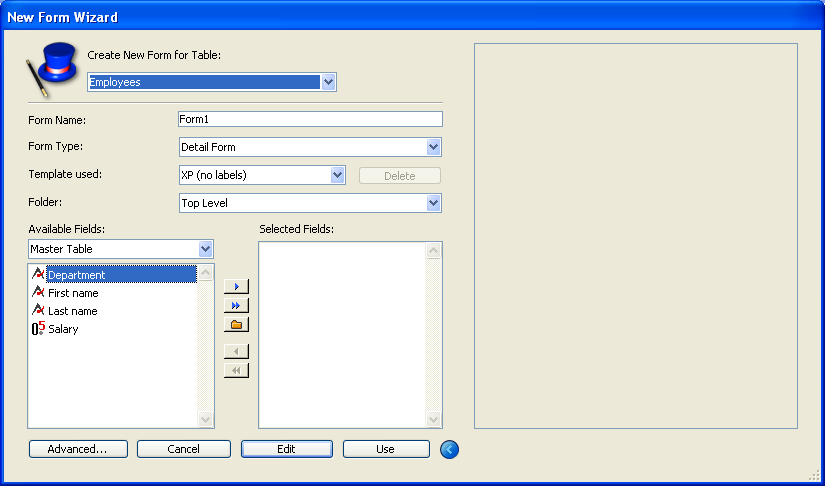
Make the following settings:
• Form Name: "Web Input"
• Form Type: Detail Form
• Template used: Web Aware
• Available Fields: Click the "Add all fields" button.
The wizard should now appear as follows:
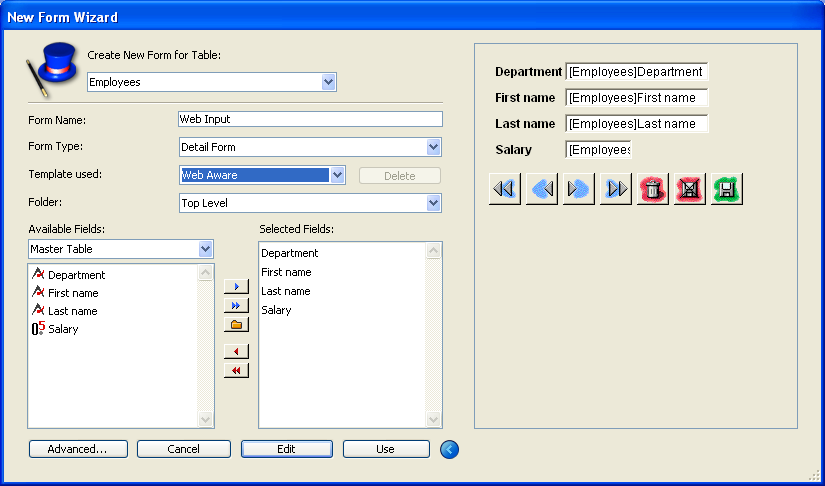
Click on the Use button.
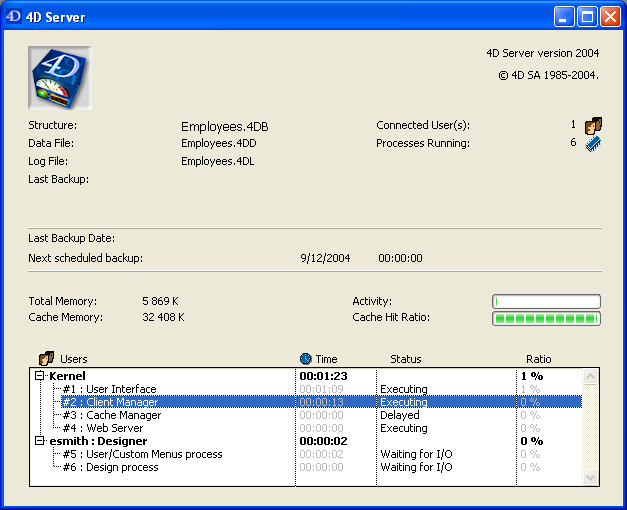
On the server machine, you have one connected user:
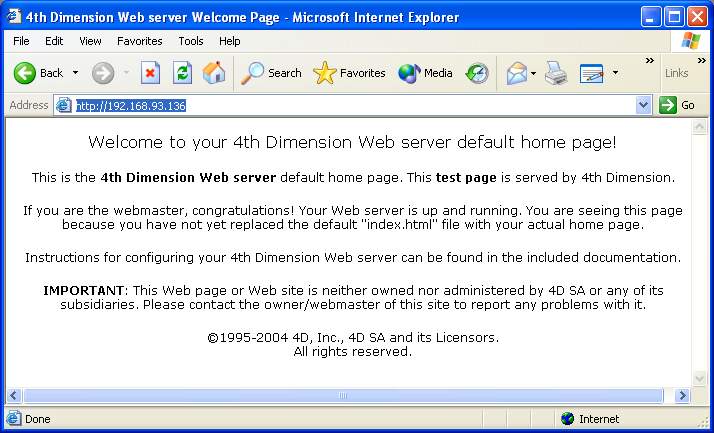
To check that the Web server is operating, start a browser from another machine and enter the IP address of the server machine in the "Address" area of the browser (usually of the 123.45.67.89 type). You should obtain the default home page of the Web server as follows:
You are now going to configure the Web server so that it starts in contextual mode. In this mode, Web pages come from dynamic conversion of the 4D forms and menu bars. Contextual mode is particularly suited for fast publication of an existing database (for more information about contextual mode, refer to the section Using the Contextual Mode in the 4th Dimension Language Reference manual).
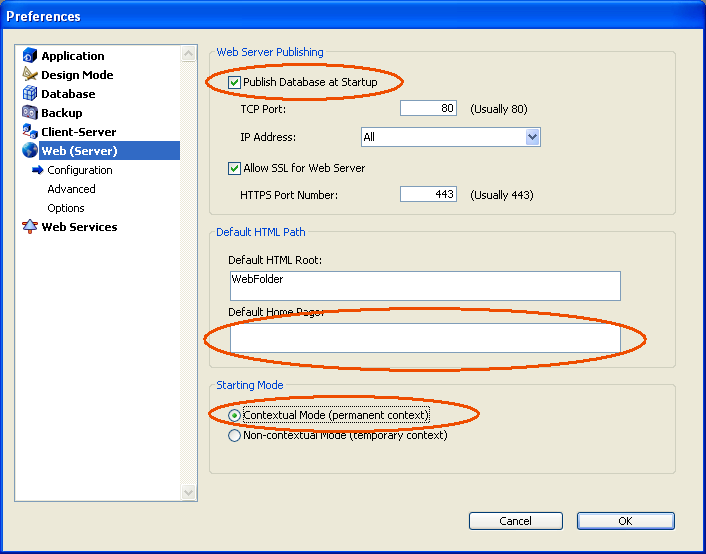
On the server machine, choose Preferences... in the Edit menu, display the "Web (Server)/Configuration" page and make the following modifications:
• Check that the database is published at startup,
• Remove the default home page (in order to use the menu bar as the home page),
• Check the "Contextual Mode" option.
The page should appear as follows:
Return to the machine where the Web browser is running and refresh the server connection. You will now obtain the Web version of your custom menu bar (it may be necessary to empty the cache of the browser):
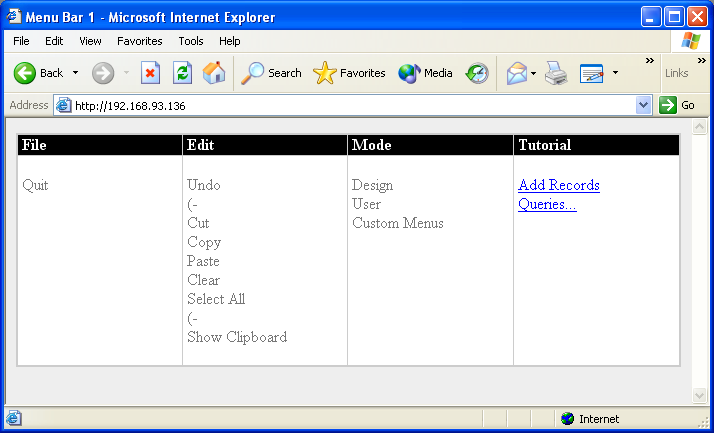
Note that you did not need to write any HTML code or implement any CGI module to get this result—4D Server is a Web server too!
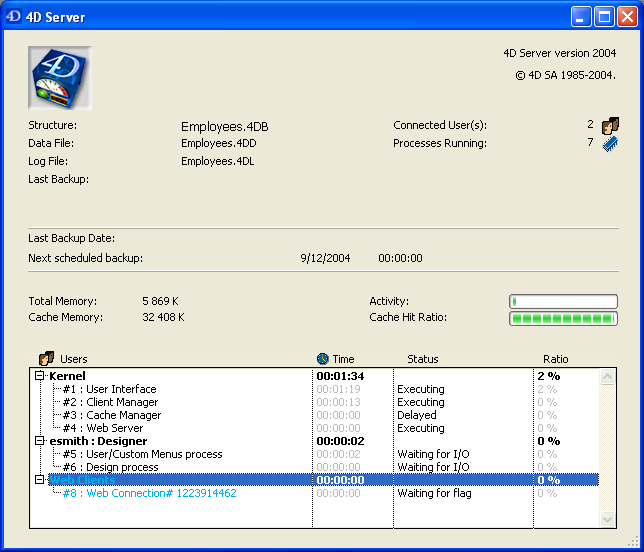
On the server machine, the contextual Web connection is listed in the administration window:
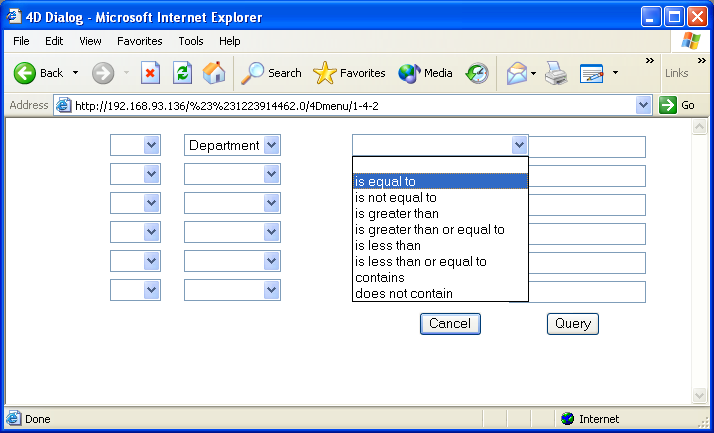
On the Web Browser side, click Queries. 4D Server translated its standard Query editor window into an HTML page—on the fly. Define the query "Department is equal to Engineering".
You get the results of the query:
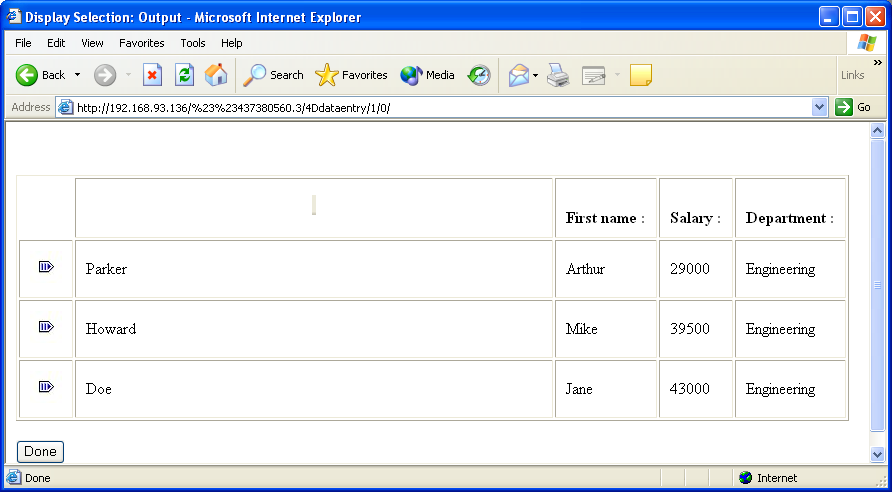
4D Server dynamically translates the 4D data into Web data and displays the list of records.
Using the icon in the left column, open the record "Parker, Arthur".
The input form you were using with 4D client appears as a Web page (transparently translated by 4D Server):
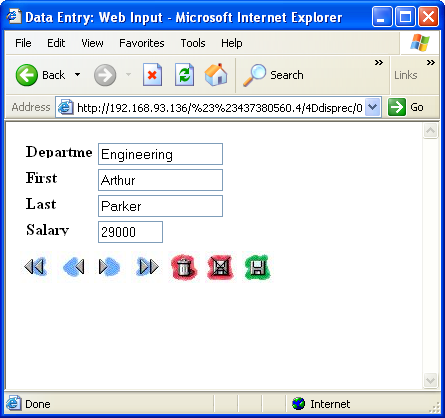
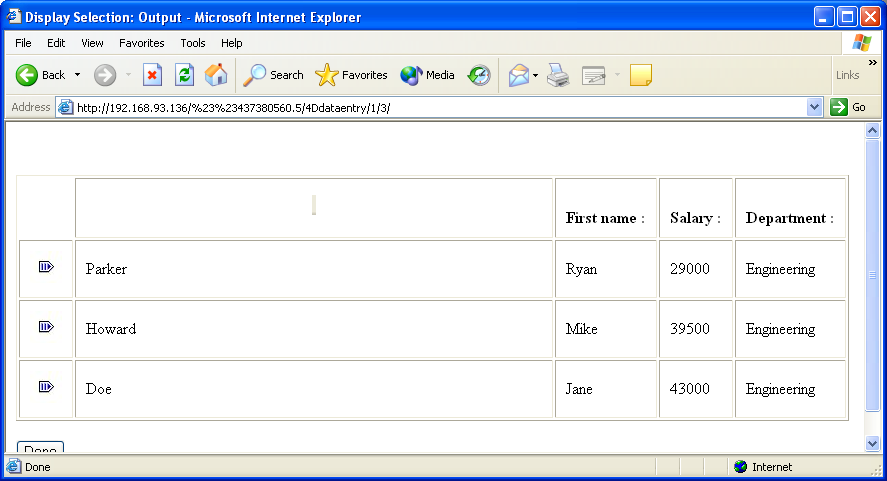
Change the first name to Ryan and validate the data entry. Go back to the list of records and note that the change shows up in the list of records:
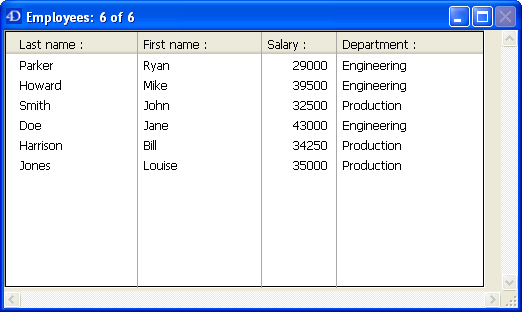
Last but not least, go to the User environment on the 4D Client machine.
You see that the change is also available on the client:
Conclusion
With this tutorial (which may take more than 10 minutes, depending on various factors, such as time you took for a drink), you have discovered how easy it is to use 4D Server:
• You created a database from scratch.
• You defined a table and let 4D Server create the forms for you.
• You added and manipulated some records.
• You customized your application with your own menu bar.
• You used the server database concurrently on both Windows and Macintosh.
• You shut down the server and restarted it.
• You used the server database concurrently with 4D Client and via the Web!
To conclude, you created three custom applications (Windows, Macintosh and Web) while actually developing only one. In addition, if you need to use the database in single-user mode, you could open it directly, as is, with 4th Dimension or 4D Runtime.
To learn more about 4D Server, read the introductory sections of this manual, as well as the other sections that describe 4D Server in detail.
For a complete examination of the 4D environment, refer to:
• The 4th Dimension Design Reference manual to learn about designing 4D databases.
• The 4th Dimension User Reference manual to learn about the built-in editors used in this tutorial, such as the Query Editor and the Chart Wizard.
• The 4th Dimension Language Reference manual to learn about the commands of the 4D language. For instance, to learn about the Web capability of 4D Server, read the section Web Server, Overview in this manual.
|
|
|
|
|
|
|
|
|