


|
|
|
|
|
|
|
|
|
version 2004 (Modified)
After you have connected to the server database (see the section Connecting to the Server Database with 4D Client), bring the Structure window to the front.
The new database has a default first table name [Table1].
Setting the Definition of the [Employees] Table — an Example
1. Double-click the title bar of [Table1].
OR
Click using the right mouse button or press Ctrl+click (on Mac OS) on [Table1], then select Table Properties... within the contextual menu.
The Inspector floating window appears.
2. Type Employees in the Name area.
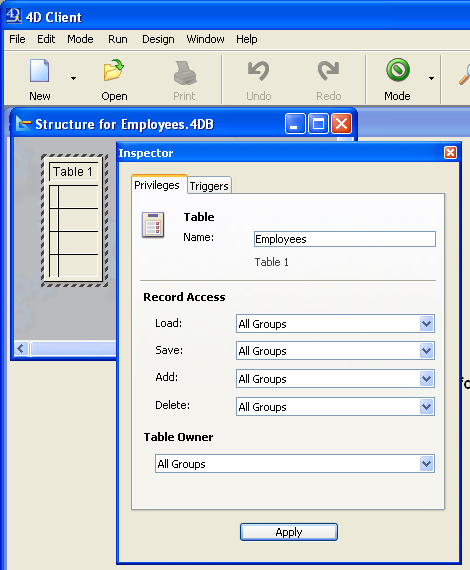
3. Click the Apply button.
4. Click using the right mouse button or press Ctrl+click (on Mac OS) on [Table1], then select New Field within the contextual menu.
The field properties are displayed in the Inspector window.
5. Add the following fields to the [Employees] table:
| Field Name | Field Type |
| Last Name | Alphanumeric (20 characters) |
| First Name | Alphanumeric (20 characters) |
| Salary | Real |
| Department | Alphanumeric (20 characters) |
For each field, enter the name of the field in the Name area, select the field type and click Add.
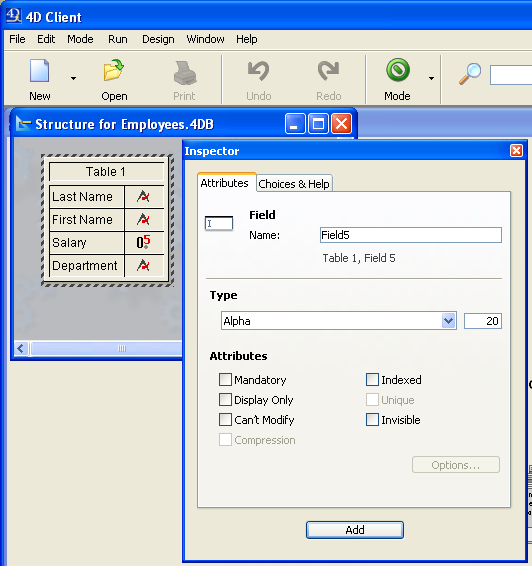
After you have added the fields to the table, close the Inspector window.
Note: If other 4D Clients were working simultaneously with the server database, the fields you have just created will appear on the other client machine in a few moments. The changes are implemented on the server in real time, but do not appear on other screens immediately, to avoid updating the screen too frequently.
Creating Foms for the [Employees] Table
After you have defined the [Employees] table, you need forms to add and work with its records. To do so, you could use the New Form Wizard and create forms at your convenience. However, 4D Server comes with a convenient shortcut for quickly creating default input and output forms.
1. Choose User from the Mode menu.
You switch to the User environment. 4D Server detects that the table still has no forms and asks if you want to let the program create them for you.
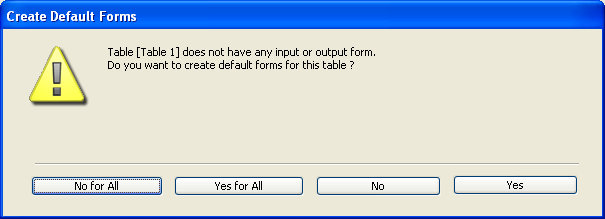
2. Click Yes.
You have now an input form for adding or displaying records one by one, and an output form for displaying or entering multiple records in list mode.
Where To Go From Here?
Your server database is ready for data manipulation. Go to the section Data Manipulation with 4D Server.
|
|
|
|
|
|
|
|
|