


|
|
|
|
|
|
|
|
|
version 2004.3 (Modified)
This section explains how to create a server database that can be accessed on the network using 4D Client and then using a Web Browser. Before working with 4D Server and 4D Client for the first time, it is a good idea to check your installation. To do so, read the section Checking your installation.
Note: In this example, we assume that you have already registered your 4D Server with 4D, as described in the 4th Dimension Installation Guide.
To create or open a server database, launch 4D Server.
1. Launch 4D Server by double-clicking on the 4D Server icon.

The Welcome dialog box appears, giving you the choice of opening an existing database, creating a new one (either blank or based on a template), or restoring an archived database. In this exercise, you will create a new database.
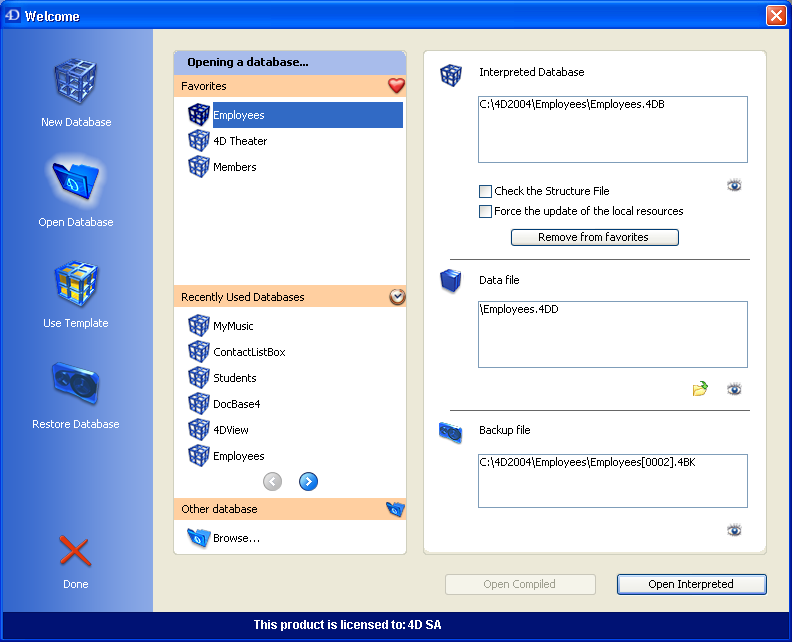
2. Click on the New Database icon on the left-hand side of the window.
The following window appears:
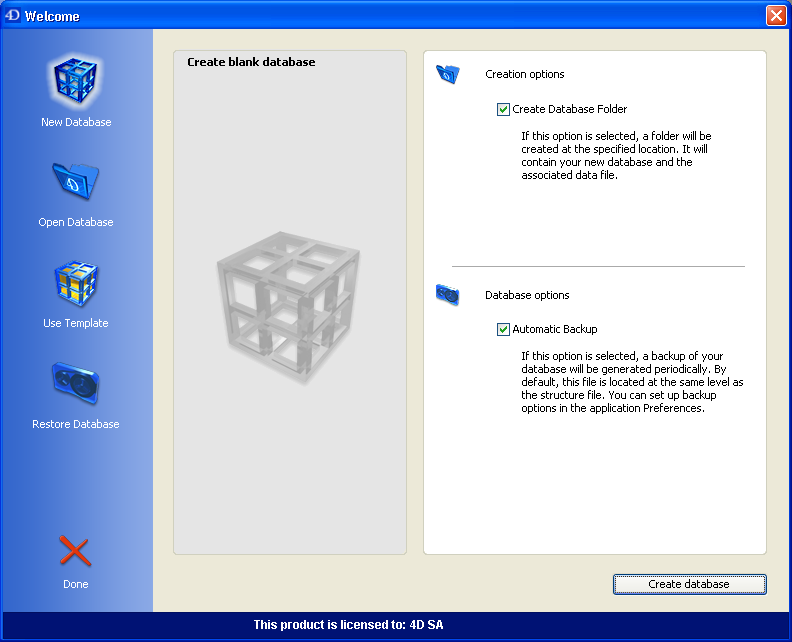
3. Keep the default options and click on the Create database button.
A standard save file dialog box appears, which lets you specify the name and location of the new database to be created.
4. Specify a location, then enter the name of the structure file of the database.
Type Employees, then click Save.
4D Server automatically creates the files and folders required for the operation of the database, then the administration window appears:
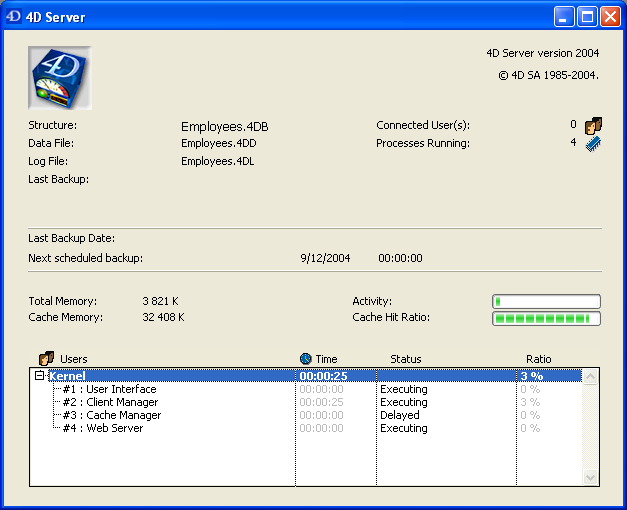
The 4D Server administration window is composed of several parts.
The upper part displays general information about the server and the files used; the central part indicates the state of database backups and information related to the memory; and the lower part displays information about the current server activity.
Note that at this point, the number of users connected is zero. This means that you have not yet connected any clients to the database. The number of processes currently running is four. These four processes are the processes created by the database engine (kernel) and the built-in Web Server.
The lower portion of the 4D Server window lists the connected users and the processes that are currently executing. When no client workstation is connected, the only information displayed consists of the server engine activity.
Where To Go From Here?
At this point, the database is available for Windows and/or Macintosh 4D Client connections over the network. However, the database is not yet ready for Web Connections, because these connections are not authorized by default.
Go to the section Connecting to the Server Database with 4D Client. In this tutorial, you will first connect using 4D Client, define the structure of the database and add some records to the database.
|
|
|
|
|
|
|
|
|